Installation
Latest version can be fetched from terminal
|
Verifying via checksum (optional)
|
|
Verifying via gpg signature
|
|
|
Extract
|
Getting Started
Step One
In the SARA project directory, run the command make to generate the config.h file, and open it for editing
Step Two
Locate the first appearance of reload_cmd and ensure it is set to the compiled sara binary. reload_cmd will allow you to reload SARA after editing config.h and recompiling.
Locate the commandkeys[] array and observe that make_cmd and reload_cmd are configured to 'm' and ':' respectively. After updating config.h, I recommend starting SARA in a separate terminal window. So you may edit and recompile SARA (from within SARA) with 'm', and then 'hot' reload with ':'.
Keymapping
Each line within the commandkeys[] array sets the behavior of a key. An example:
Each item in this example represents the following:
| 'e' | The key that triggers this command |
| example_cmd | Pointer to the NULL-terminated command to be executed |
| STOP | The WAIT_OPTION that defines how SARA behaves after pressing 'e' |
| none | The PRE_ANIMATION that displays before executing the command ('none' is no animation) |
| neon | The POST_ANIMATION that displays when sara returns after launching example_cmd |
| confirm | Reference to an object containing three possible extra options. This one, 'confirm', asks to confirm before executing example_cmd (found in config.h as ExtraArgs confirm) |
Thusly, the six columns available for each item in your commandkeys are
| KEY | The key that triggers this command |
| COMMAND | The name of the command object you want to execute when you press your key |
| WAIT_OPTION | Which option (of five, listed in the next table) that describes the action SARA takes after executing COMMAND |
| PRE_ANIMATION | The animation displayed before executing COMMAND |
| POST_ANIMATION | The animation displayed after executing COMMAND |
| ExtraArgs | Three extra options that describe optional extra actions (described below). |
The WAIT_OPTION describes if/how SARA waits after launching a command:
| WAIT | Executed command takes over the terminal, and SARA resumes immediately when the launched command exits |
| STOP | Executed command takes over the terminal, and SARA resumes after the launched program exits and [ENTER] is pressed (useful for reading command output) |
| STOP_ON_ERR | Identical to WAIT when the launched command succeeds, identical to STOP when launched command fails |
| EXEC | SARA process is replaced with the launched command. Utilized in the default config with reload_cmd to replace the running instance with the newly compiled version. |
| NOWAIT | SARA spawns COMMAND and immediately returns without waiting. Useful for launching desktop apps. Recommend using with NO_OUT from ExtraArgs to suppress the output of the launched command. Best for launching desktop apps. Also recommend prepending the command strings with "nohup" so the apps persist if you close the terminal. Search for "firefox" within my config for a complete example |
Lastly, there are three extra available options exposed via ExtraArgs passed to all Command items
| chdir_option | Optionally change directory before executing a command by changing NULL to "path/to/directory" (in quotes) |
| confirm_option | Optionally ask for confirmation to execute a command with CONFIRM, otherwise set to NOCONFIRM |
| output_option | Suppress executed command's output to the terminal with NO_OUT, otherwise set to OUTS |
Menu Mapping
Per C rules, all entries in menukeys (like example_menu) are defined before menukeys. This pattern also applies to all entries in example_submenu. Commands and submenus must be defined in config.h before the menu in which they appear.
Map keys to launch your menus in menukeys:
Observe that example_menu contains a submenu by specifying the SUBMENU option, and subsequently points to the next menu with .submenu
Each menu option must describe whether the menu item is either a submenu (via SUBMENU and .submenu), or a command (via COMMAND and .command).
Please Note: The item is required for ALL menus in all SARA 1.x.x versions.
As mentioned, commands and submenus are defined above the menu in which they appear in config.h:
Notice above that echo_success contains identical elements as any entry in commandkeys (see 'Keymapping' above) despite appearing in a menu, except that echo_success contains a zero in the first position in place of a character that would trigger it. This zero value denotes that any character in this first position is ignored for all Command items that appear in menus, as they are not triggered via single key presses like those in commandkeys[]
In summation, the steps to create a new menu in SARA is:
Create/edit a row in menukeys[]. Set the triggerkey character and the name of the menu that will be launched when that key is pressed.
Copy/paste an example_menu above menukeys[] and edit "example_menu" to match your new menu name in menukeys[]
Clear or edit the inner contents of the new menu above END_OF_MENU and, following the same structure as the examples, create entries for commands and/or submenus. The first item sets the legend that will appear in your menu. The second will be either SUBMENU or COMMAND depending on your choice, and the third points to either the submenu or command that will execute after pressing [ENTER].
Above your new menu. Define and describe commands and/or submenus in the same mannor as the examples.
If lost, I recommend either the youtube-tutorial or deducing the pattern from my SARA config.
Copy/pasting here is your buddy!
Builtins
A handful of builtin functions are made available for various purposes within SARA, accessed in builtinkeys[]
| quit | Exits SARA (A warning will print if this is not mapped) |
| colors | Displays your current terminal color profile, useful for setting your colors |
| invert_colors | Rotates the current color settings between fg[], bg[], and hd[] |
| randomize_colors | Randomly sets colors for fg[], bg[], and hd[] |
| rave | Quickly cycles color setting of bg[] between terminal colors 1-7 |
| pshd | Opens the pshd menu (See Navigation) |
| path_run | Opens the path_run menu, allowing for the quick execution of any file present in $PATH. Pressing [SPACE] allows you to pass arguments to the selected executable. |
Navigation
Builtin function, (default 'p'). Reads ~/.config/sara/pshd as options to cd into. Populate the pshd file with absolute paths to act as bookmarks for your system.
If the contents of ~/.config/sara/pshd is:
Then 'p' will present:
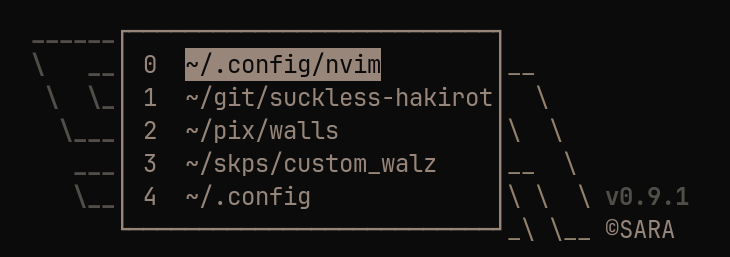
Select with 'j'/'k', [ENTER], or enter [num] to jump to menu option [num]. Press '/' or 'f' to filter the options.
Exit the filter prompt with ESC. Exit pshd menu with 'q' or ESC.
The chdir_option in ExtraArgs can also be used to change your working directory. This example creates a menu to cd between a Pictures or Downloads folder.
is a special option made to execute nothing while still changing directories via the chdir_option
Note: will be removed in v0.9.3 in favor of just passing NULL in place of empty commands like examples cd_downloads_cmd/cd_pictures_cmd.
Ranger is a terminal file explorer of choice that SARA uses to cd into the last directory visited by ranger. When SARA launches ranger, SARA cd's into ranger's last visited directory by default. Unset this option in config.h by changing FOLLOW to false.
Your terminal can follow SARA in the same manner that SARA follows ranger, by calling SARA with a wrapper function:
.zshrc example:
When FOLLOW = true, SARA writes the last working directory to $HOME/.cache/sara/saraexit on exit, allowing your terminal to drop straight into it.
There is no faster way to nav a system :]
If there are other tui file explorers you'd like implemented, and can be implemented, let me know.
UI Config (Ricing)
The following UI settings are found in config.h
ASCII ARRAYS
Wide-character support is enabled for fg[], bg[], and hd[]
| fg[] | Foreground display array |
| bg[] | Background display array |
| hd[] | Header display array |
Note: fg[] and bg[] can be different sizes, but the length of each row (the area in quotes) within fg[] or bg[] should be equal, making a square. If the lengths don't match, you will see a warning after you compile SARA.
Note: Any '\' characters that appear in fg[], bg[], or hd[] ASCII art must be paired with a second '\' to display properly within fg[] or bg[]. '\' is an escape code in C when appearing in quotes, and must be paired.
Note: Misconfigured backslash characters should trigger warnings after you compile your config, as well as complaints from the compiler
COLORS
Note: The colors function in builtinkeys[] displays your terminal colors. The eight named available colors are black, red, green, yellow, blue, magenta, cyan, and white. Eight additional colors are available as their bold variants.
This script might be helpful
| fg_c | Display color of fg[] |
| bg_c | Display color of bg[] |
| hd_c | Display color of hd[] |
| menu_c | Display color of user menus |
| pshd_c | Display color of the pshd menu |
| run_c | Display color of the path_run menu |
| fg_c_bold | Use terminal bold color for fg_c |
| bg_c_bold | Use terminal bold color for bg_c |
| hd_c_bold | Use terminal bold color for hd_c |
| menu_c_bold | Use terminal bold color for menu_c |
| pshd_c_bold | Use terminal bold color for pshd_c |
| run_c_bold | Use terminal bold color for run_c |
ASCII ARRAY POSITIONS
Repositioning of fg[], bg[], hd[] and tn[] is accomplished by specifying positive or negative values that set the position of the associated ascii arrays relative to screen center. POSITIVE X values repositions RIGHT, NEGATIVE X moves LEFT, POSITIVE Y moves DOWN, NEGATIVE Y moves UP.
| bg_offset_y | y-axis position of bg[] |
| bg_offset_x | x-axis position of bg[] |
| fg_offset_y | y-axis position of fg[] |
| fg_offset_x | x-axis position of fg[] |
| hd_offset_y | y-axis position of hd[] |
| hd_offset_x | x-axis position of hd[] |
MENU SIZES AND OFFSETS
Note: All *_offset_* variables follow the same logic as the ascii array position variables above
| menu_y | user menu height |
| menu_x | user menu width |
| pshd_y | pshd menu height |
| pshd_x | pshd menu width |
| run_y | path_run menu height |
| run_x | path_run menu width |
| menu_offset_y | y-axis position of user menus |
| menu_offset_x | x-axis position of user menus |
| pshd_offset_y | y-axis position of pshd menu |
| pshd_offset_x | x-axis position of pshd menu |
| run_offset_y | y-axis position of path_run menu |
| run_offset_x | x-axis position of path_run menu |
| MenuBorder[] | All menu borders are constructed from the six characters present in MenuBorder[]. In order: top-left corner, top-right corner, lower-left corner, lower-right corner, top&bottom borders, left&right borders |
DYNAMIC RESIZING
SARA is able to dynamically resize and omit displaying bg[] when the terminal dimensions are smaller than the specified sizes of either resize_x or resize_y. Currently, only hd[] can be repositioned when in small mode.
| dynamic_resize | Omit bg[] and reposition hd[] with hd_offset_x_min and hd_offset_y_min when terminal window is shorter than resize_y or narrower than resize_x |
| resize_x | The width threshold for resizing |
| resize_y | The height threshold for resizing |
| hd_offset_x_min | x-dimension position relative to screen center when in small-screen mode. Positive values move right, negative left. |
| hd_offset_y_min | y-dimension position relative to screen center when in small-screen mode. Positive values move down, negative up. |
| tiny_mode | Omit bg[], fg[], and hd[], while displaying only tn[] when terminal window is shorter than tiny_mode_y or narrower than tiny_mode_x |
| tiny_mode_x | The width threshold for resizing |
| tiny_mode_y | The height threshold for resizing |
Animations
Optional animations are available for some flair. PRE_ANIMATION plays before a command is executed, while POST_ANIMATION plays when SARA returns.
Note: Animations that end with a blank screen are meant to be pre_animations (neon_reverse), while others ending with the full picture (neon) are meant to be post_animations
noneSkip
down_wipes
glitch
glitch_full
neon
neon_reverse
shutter_slide
shutter_slide_neon
pixel_fill
tv_static
blink
Skip
Tips
You can reference my config for some useful examples
FAQ
No FAQ yet! Question? Ask!